
How to Stream a Snooker Match with OBS: A Complete Club Guide
By Jibran Khan · 18 August 2026 · Guides
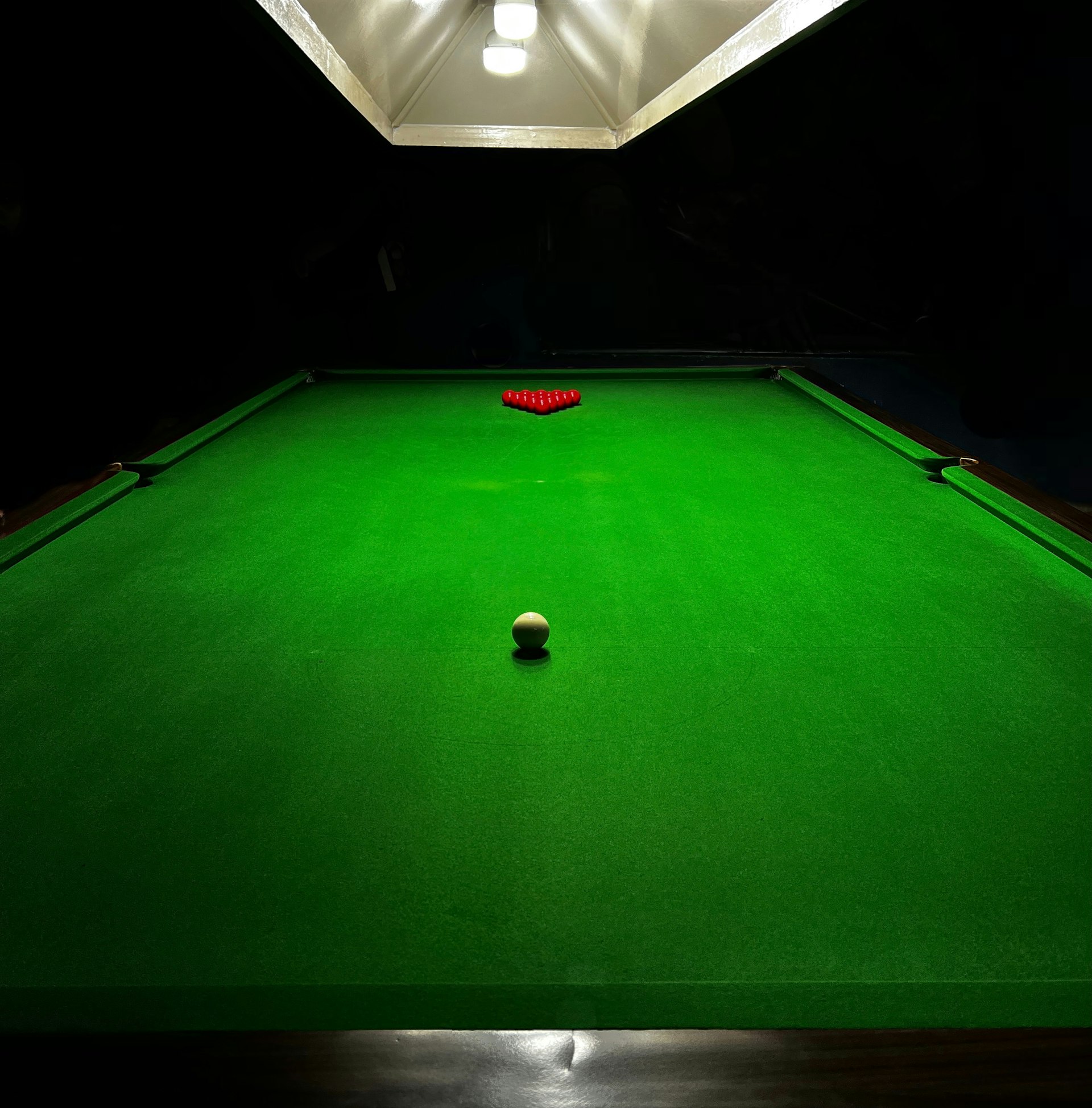
Streaming a club night takes four things: a camera pointed at the table, a way to get that camera's picture into a laptop, OBS Studio to compose the broadcast, and a live scoreboard overlay. None of it requires a production truck - a webcam or camcorder, a USB capture card if the camera needs one, and a laptop that can run OBS and a browser tab side by side is genuinely enough to go live.
Camera
A webcam or camcorder mounted high enough to see the full table works fine to start - you don't need broadcast gear. Aim for an angle that keeps both the baulk and top cushion in frame without heavy distortion at the edges; most club rigs land somewhere above head height, angled down at the table.
Getting the camera into your laptop
If your camera outputs HDMI, a USB capture card gets it into your laptop as a normal webcam source in OBS. Test the source in OBS before match night - check for delay, and that the resolution and frame rate actually match what you've set the canvas to, since a mismatch here is the most common last-minute streaming surprise.
What laptop you actually need
You'll be running OBS and the referee pad side by side, so anything from the last few years handles it fine - the load is mostly video encoding, not the app itself. Keep it plugged into power for the whole session, and use a wired ethernet connection over Wi-Fi if the venue has one; upload stability matters far more than raw bandwidth for a stream that doesn't drop frames.
Building the OBS scene
Build the scene with your camera feed as the base layer, then add the scoreboard overlay as a Browser Source on top - it's transparent, so it composites directly over the table feed with nothing to key out. Size the Browser Source to match your canvas exactly so the scoreboard doesn't look stretched or offset.
Adding the scoreboard overlay
Copy the overlay link from the referee pad and paste it into OBS as a Browser Source - scores, break values, and the shot clock all update live as you referee, with no manual syncing and no second app. See Adding the overlay to OBS for the exact steps.
Going live
Start streaming a few minutes before the first frame so viewers have time to find the link and settle in, and double-check your stream's visibility (public, unlisted, or scheduled) before you go live - most platforms won't let you change some of these mid-stream.
| Item | What it's for | Do you need it? |
|---|---|---|
| Webcam or camcorder | Captures the table | Yes — any recent one works, no broadcast gear required |
| HDMI capture card | Gets an HDMI camera into your laptop as a normal video source | Only if your camera outputs HDMI rather than USB |
| Laptop (last few years) | Runs OBS and the referee pad side by side | Yes — wired ethernet over Wi-Fi if the venue has it |
| OBS Studio | Composes the camera feed and the overlay into one broadcast | Yes — free |
| SnookerFlow overlay link | Live, transparent scoreboard that composites over the table feed | Yes — free on every plan (Free tier shows a small watermark) |

The overlay itself is already built for exactly this - copy the link from the referee pad, drop it into OBS as a Browser Source, and it updates live with no further setup as you referee. See Adding the overlay to OBS for the exact walkthrough, or the overlay showcase for what it looks like in practice.